How to Transfer AI Memory Between Tools (ChatGPT to Claude Guide)
TL;DR
- Switching AI tools is a context gap, not a learning curve. What slows you down isn't the new tool — it's losing the patterns, preferences, and project context your old tool quietly built up.
- Most of that context can be moved. Custom Instructions, recurring prompts, format preferences, project background — all of it can be transferred in about 20–30 minutes with a structured approach.
- Restructure before you paste. Dumping a raw ChatGPT export into Claude produces mediocre results. Organise your context into who you are, how you work, and what you're actively working on.
- Claude Projects are the right home for it. A persistent workspace + project instructions means Claude already knows the brief every time you start a new chat.
- Calibrate before you commit. Spend 10 minutes testing how well Claude has absorbed your context, correct what it gets wrong, and update your instructions before doing real work.

Daniyal Khawaja
UX Designer | B2B SAAS & Design System Specialist
If you've recently switched from ChatGPT to Claude, you already know the feeling. You open a fresh conversation and realise the tool knows absolutely nothing about you.
Not your projects. Not your tone. Not the dozen small preferences you never consciously set but somehow trained into your old setup over months of use.
It's frustrating. And it's one of the most underrated friction points in AI workflows right now.
This guide is about fixing that.
Why AI Memory Actually Matters
Most people think of AI tools as search engines with better answers. But if you use them seriously, they become something closer to a working partner.
Over time, ChatGPT (or any AI you use consistently) picks up on patterns. How you like information structured. Whether you prefer bullet points or prose. The tone of your writing. The kind of projects you work on. The way you frame a problem before asking for help.
None of this is stored in a formal "memory file." It lives in your custom instructions, your saved prompts, your conversation history, and in the habits you've developed around the tool.
That's your AI context. And it's more valuable than most people realise until they have to rebuild it from scratch.
The Real Cost of Switching AI Tools
Switching to a new AI tool is not just a learning curve. It's a context gap.
You spend the first few days constantly re-explaining yourself. "I'm a UX designer." "I prefer concise responses." "Here's some background on the project we're working on." Things you stopped having to say months ago.
This isn't a small inconvenience. For designers, developers, and knowledge workers who rely on AI daily, it can slow you down for a week or more. Some people give up and go back to their old tool simply because rebuilding feels like too much effort.
The tool itself might be better. But the relationship isn't there yet.
The Fix: Structured Memory Transfer
Here's the thing. You can shortcut most of that rebuild.
Claude, like ChatGPT, allows you to give it context upfront through system prompts, project instructions, and custom settings. If you bring the right information across in the right format, Claude can get up to speed surprisingly fast.
With a structured approach, you can move the most important parts of your context in about 20 to 30 minutes.
Here's how.
Step-by-Step: Moving Your Context from ChatGPT to Claude
Step 1: Export What You've Built in ChatGPT
Start by pulling out the things that actually shaped how ChatGPT responded to you.
Go to ChatGPT Settings and look at two things. First, your Custom Instructions. This is the most valuable thing to export. It contains how you've told ChatGPT to respond, what it should know about you, and any preferences you've set. Copy this in full.
Second, skim your recent conversations. Look for patterns. Are there recurring prompts you use? Projects you reference often? Specific ways you've asked the tool to format or approach things? Note these down. You don't need to export full conversations, just the patterns inside them.
Also check if you've saved any prompt templates or used the memory feature. Export or note anything that captures how you work.
Step 2: Restructure It for Claude
Claude processes context differently to ChatGPT. Dumping a raw export into Claude's instructions often produces mediocre results. A bit of restructuring goes a long way.
Organise your context into three clear sections:
Who you are and what you do. A short paragraph covering your role, the type of work you do, and the problems you typically bring to AI. For example: "I'm a senior UX designer specialising in B2B SaaS products and design systems. I work with product teams and founders, mostly on complex data-heavy interfaces."
How you like to work. Your preferences around tone, format, and response style. Be specific. "Keep responses concise unless I ask for detail. Use plain language, not academic phrasing. When reviewing copy, flag issues directly rather than softening feedback."
Active context. Any ongoing projects, current priorities, or background information Claude needs. This can be updated regularly as your work changes.
Step 3: Set Up Claude Projects
This is one of Claude's most underused features for power users.
Claude Projects let you create a persistent workspace with instructions that apply across every conversation inside it. Think of it as a dedicated environment where Claude already knows the brief.
Create a project for each major area of your work. Add your restructured context to the project instructions. From that point on, every conversation inside that project starts with Claude already knowing who you are, what you're working on, and how you like things done.
Step 4: Run a Calibration Conversation
Before jumping into real work, spend 10 minutes testing how well Claude has absorbed your context.
Ask it to summarise what it knows about you. Ask it to draft something in your tone. Give it a task you'd normally do in ChatGPT and compare the output.
Where it gets things wrong, correct it explicitly and update your project instructions. This calibration session is short but it saves a lot of friction later.
Best Practices for Keeping Your Context Sharp
A few things worth keeping in mind once you're set up.
Keep your context document short. Claude responds better to clear, specific instructions than to long paragraphs of background. Aim for quality over completeness.
Update it regularly. As your projects change, so should your active context section. Treat it like a living brief, not a one-time setup.
Use separate projects for separate contexts. Your client work, personal projects, and research all have different needs. Don't mix them into one set of instructions.
Don't rely on conversation history alone. Claude's memory within a conversation is strong, but it resets. Important preferences and context belong in your project instructions, not just in a chat thread.
Working on something related to AI or design and need help?
Email me at contact@daniyal.design and share what you are building.
View My Work
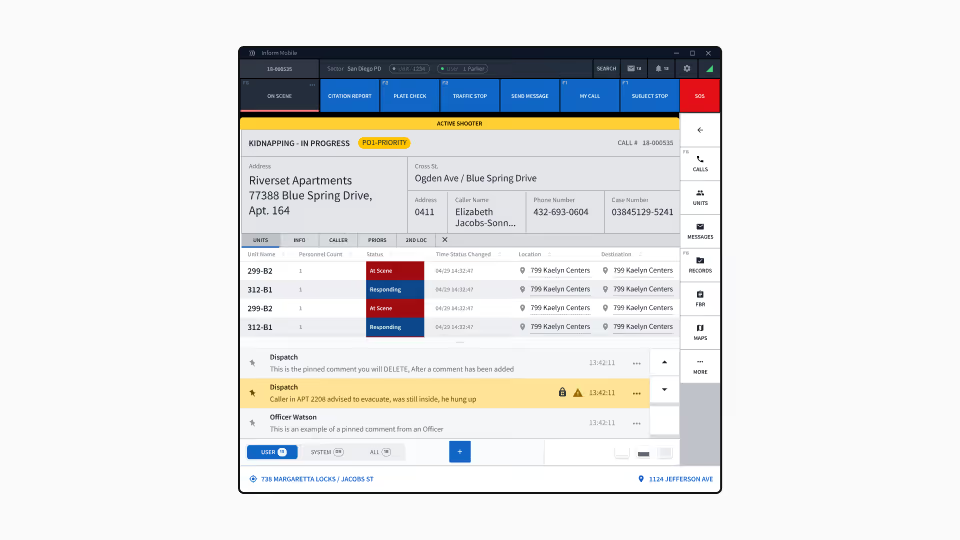
A browser-based CAD system that replaced decades-old dispatch software for 911.
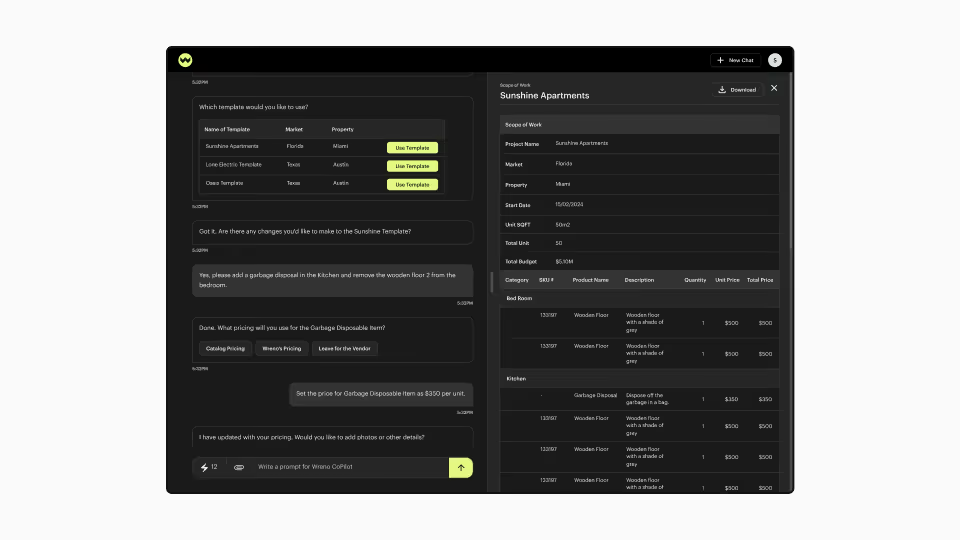
AI-powered chat agent that collapses five SaaS modules into a single conversational interface.